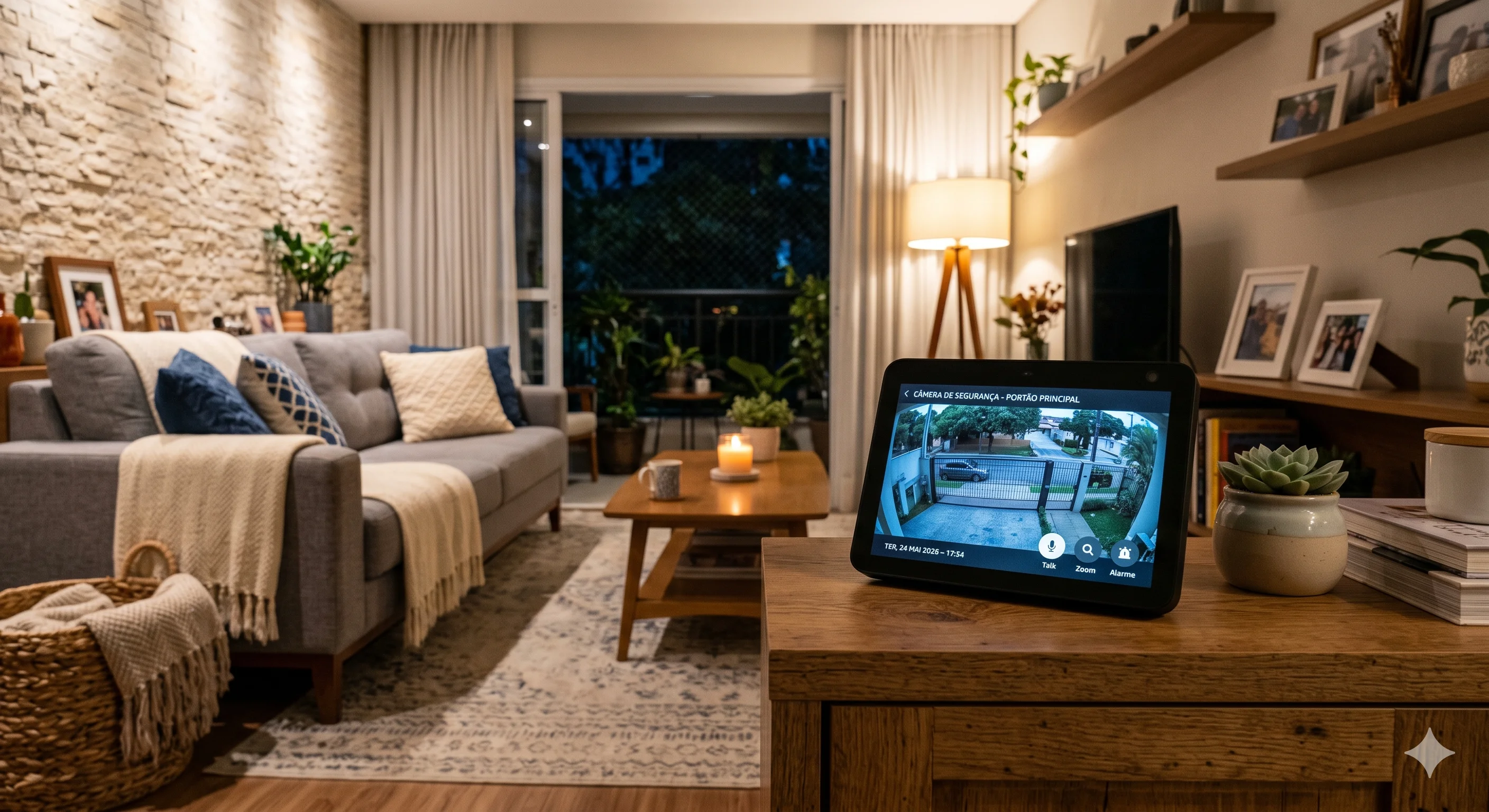
Have you ever wondered if you could see what’s going on at home without having to get off the couch—or even while you’re out of town? Technology has made this incredibly simple and accessible. Integrating your security camera with Alexa is one of the smartest steps you can take if you want to turn your home into a truly connected and secure environment.
In this guide, I’ll walk you through the definitive step-by-step process for setting up this connection, ensuring you have peace of mind and convenience right at your fingertips or with a simple voice command. Forget about complicated setups; let’s make this process intuitive and practical.
Why integrate your cameras with Alexa?
Home automation is no longer a luxury—it’s become an ally for security and well-being. When you centralize control of your cameras within the Alexa ecosystem, you gain agility. If a motion sensor is triggered or someone rings the doorbell, the video feed can be displayed instantly on your Echo Show screen or your Smart TV.
Plus, voice control lets you monitor different rooms just by saying, “Alexa, show me the living room camera.” This convenience is unbeatable, especially for those with a busy schedule who need quick updates on home security.
Advantages of Centralized Monitoring
Speed: Immediate access to footage without having to open multiple apps.
Versatility: Ability to view the feed on Echo Show devices or TVs connected to Fire TV.
Centralization: Manage multiple devices from different brands in one place.
Enhanced security: Receive smart alerts and get a quick overview in the event of an incident.
Basic requirements to get started
Before diving in, we need to make sure everything is ready. There’s no point in trying to set it up if the basics aren’t in place. The process is simple, but it requires you to check three key points.
Required devices
First, you need a security camera compatible with the Alexa ecosystem. The vast majority of popular brands on the Brazilian market (such as Intelbras, TP-Link, Xiaomi, and Ring) offer native support. If you’re not sure whether yours is compatible, check the box or the manual for the “Works with Alexa” seal.
Second, you need an Alexa device, preferably one with a screen, such as the Echo Show. Although you can manage audio alerts on screenless devices, the full experience of viewing the video feed requires an Echo Show or a TV with a Fire TV Stick.
Network Connection and Apps
The internet is at the heart of this integration. Make sure both your camera and your Alexa device are on the same Wi-Fi network. Connection issues often occur due to separate 2.4GHz and 5GHz networks. Ensure everything is on the same frequency to avoid communication failures.
Also, make sure you have the camera manufacturer’s app installed and set up on your phone. You’ll need to log in to your account with the manufacturer within the Alexa app, so if you haven’t set up the camera in its original app yet, do that first.
Step-by-Step: Connecting Your Camera to Alexa
Now, let’s get to the practical part. The process can be broken down into three clear steps: enabling the skill, performing device discovery, and testing the connection. Follow this sequence exactly.
1. Enabling the Manufacturer’s Skill
Every security camera has its own “language.” Alexa needs a translator, which we call a skill.
Open the Alexa app on your phone.
Tap More (in the bottom-right corner).
Select Skills and Games.
In the search bar, type the name of your camera’s brand (e.g., “Intelbras Mibo,” “Tapo,” “Yi Home”).
Tap the corresponding skill and select Activate.
The app will ask you to log in with the same username and password you use in the camera app. Authorize access.
2. Discovering devices
After authorizing the skill, Alexa needs to “see” the new device.
After successfully logging in, the app will ask if you want to detect devices. Tap "Detect Devices."
If it doesn’t appear automatically, go to the Devices tab in the bottom menu, tap the + icon (top right corner), and then tap Add Device.
Select Camera from the list of device types.
Alexa will scan your network and list the cameras it finds. Select yours and follow the instructions to complete the setup.
3. Testing the Setup
Nothing beats a hands-on test. Ask Alexa: “Alexa, show [the name you gave the camera].” If the image appears on your device’s screen, congratulations! You’ve successfully completed the setup.
Tips for Optimizing Your Experience
Setup is just the beginning. To make your system even more efficient, a few extra settings can make all the difference in your daily life.
Naming your cameras
Give your cameras short, intuitive names. Instead of generic names like “Camera_IP_01,” use names like “Front Camera,” “Backyard Camera,” or “Living Room Camera.” This makes voice commands much easier and prevents Alexa from getting confused. Avoid names with strong accents or terms that sound too similar.
Creating Smart Routines
You can go beyond simple monitoring. With Alexa, you can create camera-based routines.
Example: “If the Backyard Camera detects motion after 10 p.m., turn on the hallway light.”
To set this up, go to More > Routines in the Alexa app and create a new automation using the camera device as the trigger.
Troubleshooting Common Issues
Sometimes the camera goes offline or takes a while to load.
Check your internet connection: A weak Wi-Fi signal near the camera is the main cause of slow performance.
Restart the devices: A simple restart of the router or camera usually resolves 90% of disconnection issues.
Update the apps: Always keep the Alexa app and the manufacturer’s app up to date.
Conclusion and Next Steps
Integrating your security camera with Alexa is a no-brainer for anyone looking for a more convenient and secure routine. As we’ve seen, the process is straightforward: set up the camera in the original app, enable the corresponding skill on Alexa, and adjust the viewing settings.
With your security up to date, you gain the freedom to monitor your home from anywhere, simply using your voice. It’s the kind of technology that truly improves your quality of life.
So, were you able to set up your camera right away? Did you have any questions about which skill to download or how to give commands? Tell us in the comments how your experience went and which camera model you’re using!