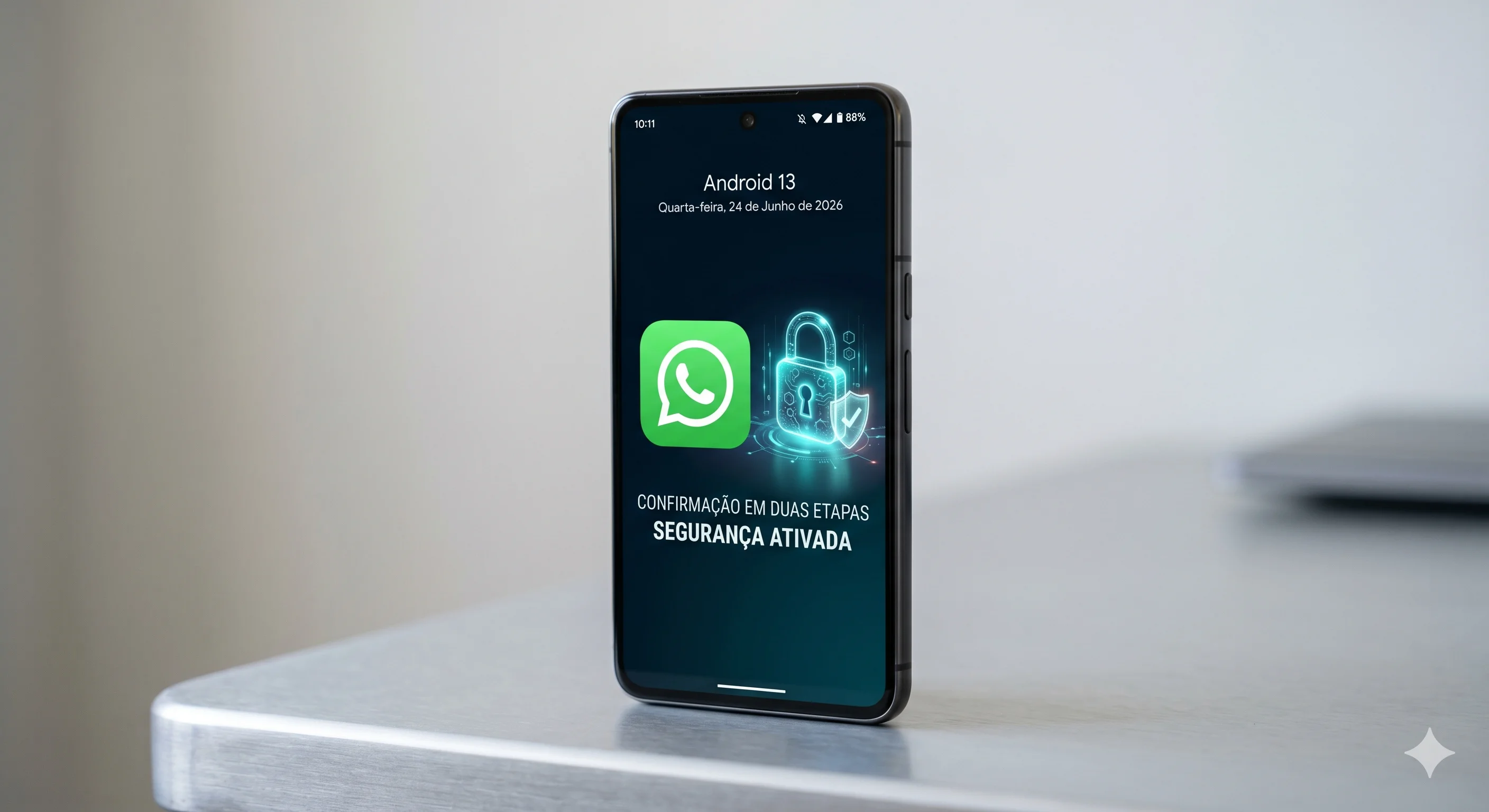
Have you ever stopped to think about how much of your personal and professional life takes place on WhatsApp? Conversations with family, customer data, important documents, and even passwords end up being stored there. Unfortunately, account cloning scams are becoming increasingly common and sophisticated.
If you’re concerned about the security of your information and want to avoid a huge headache, this article is for you. I’ll show you, in a simple and straightforward way, how to enable two-step verification on your app. It’s an extra layer of protection that takes less than a minute to set up, but it could save the day.
Why is two-step verification essential?
Many people still think that a passcode lock on their phone is enough. But what if someone gets the SMS code sent to your device? That’s where two-step verification comes in as a true shield.
When you enable this feature, WhatsApp will require a personal PIN—known only to you—whenever you need to register your number on a new device. Even if a scammer manages to clone your SIM card or intercept your SMS, they won’t be able to access your account without that PIN.
The Danger of Account Cloning
WhatsApp account cloning usually occurs when criminals trick users into revealing the verification code sent via SMS. With that code, they “hijack” the account and start asking your contacts for money, pretending to be you.
It’s a stressful situation that tarnishes your reputation. By using two-step verification, you create a mathematical barrier that makes the scammer’s job nearly impossible. It’s a minimal investment of time for maximum security.
Step-by-Step: Enabling Protection Right Now
Ready to get started? Whether you use an Android or an iPhone, the process is very similar and intuitive. Follow these steps carefully on your device:
Setting it up on Android
Open WhatsApp and tap the three dots in the upper-right corner.
Go to Settings.
Tap the Account option.
Select Two-Step Verification.
Tap the Enable button.
Setting it up on an iPhone (iOS)
With the app open, tap Settings in the lower-right corner.
Go to Account.
Select Two-Step Verification.
Tap Activate.
Choosing Your PIN and Recovery Email
After tapping Activate, the app will ask you to create a 6-digit PIN. Top tip: Never use birthdays, sequential numbers (like 123456), or your Social Security number. Choose a combination that only you know, but that’s easy to remember.
Right after that, the system will ask for an email address. Don’t skip this step! This email address is your security key in case you forget your PIN. If you forget your password and haven’t registered an email address, you might end up losing access to your account for a while, which is an unnecessary hassle.
Extra tips to keep your WhatsApp secure
In addition to two-step verification, there are other digital habits that help keep your account out of trouble. Technology is advancing, and security needs to keep pace.
Avoid clicking on suspicious links
Have you received a message from an unknown number promising miraculous deals, prizes, or links to “unmissable promotions”? Always be wary. These links are often used to install malware or steal data. When in doubt, don’t click.
Keep your app up to date
The updates that appear in your app store aren’t just there to change the app’s look. Often, they include critical security fixes that patch vulnerabilities hackers could exploit. Always keep WhatsApp updated to the latest version available on Google Play or the App Store.
Be careful when sharing codes
WhatsApp will never contact you via message asking for codes. If someone calls or messages you asking for “that code you received via SMS,” ignore them and block them immediately. This is the most classic scam out there, and it only works if you give them the code.
The importance of a digital security routine
Enabling two-step verification is just the first step. In today’s world, where artificial intelligence and social engineering techniques are becoming increasingly sophisticated, being a savvy user is the best antivirus protection you can have.
By mastering these basic settings, you not only protect yourself but also protect all your contacts. Imagine that, by staying protected, you prevent your number from being used to scam friends and family who trust you.
How to check if everything is working
After enabling this feature, WhatsApp will periodically ask for your PIN when you open the app. This is perfectly normal and ensures you don’t forget your password. If you need to switch phones, the app will ask for this same code before restoring your backup.
If you work in sales—as is the case for many professionals who use WhatsApp for business—this protection is even more vital. Your clients need to feel they can trust your communication channels. Security is also a form of marketing and professionalism.
Conclusion
Protecting your account with two-step verification is a smart decision that sets an ordinary user apart from someone who truly cares about their privacy. In just a few minutes, you’ve turned your WhatsApp into a much safer environment, out of reach of opportunists and cybercriminals.
Remember: technology is there to make our lives easier, but ultimate control over security must always remain in our hands. Don’t put off until tomorrow what you can set up today.
And you—had you already enabled this extra layer of protection, or did you just do it after reading this article? Tell us in the comments about your experience and if you have any other security tips you’d like to share with our readers!