Have you ever heard of Big Linux? If you’re tired of slow operating systems that crash all the time, or if you simply want to try something new, faster, and entirely Brazilian, you’ve come to the right place. A lot of people think that installing a Linux system is something only programmers or “hackers” do, but the truth is that Big Linux has changed the game.
It was designed with the average user in mind, combining the robustness of Linux with an extremely user-friendly and intuitive interface. In this article, I’ll show you, step by step, how to install Big Linux on your computer. The goal is that, by the end of this article, you’ll be ready to transform your computer, making it faster and more efficient. Shall we get started?
Why Choose Big Linux?
Before we dive in, it’s important to understand why so many people are switching to Big Linux. Unlike other distributions that can require hours of configuration, Big Linux comes “ready to use.” It includes a set of tools that make life much easier for anyone switching from Windows or macOS.
Superior Performance and Lightweight Design
The first big positive surprise is the speed. Big Linux manages hardware resources very intelligently. If you have an older computer that struggles to open a browser, you’ll notice a striking difference right after installation. It uses much less RAM than conventional systems.
The Brazilian touch that makes all the difference
It’s not just the language. The system was developed with a focus on the needs of Brazilians. This includes support for drivers, media codecs, fonts, and shortcuts we’re already used to. It’s as if the system knows exactly what you need to work or have fun right from the very first time you log in.
Laying the Groundwork for Installation
You can’t start building a house from the roof down. To install Big Linux without any headaches, we need to prepare a few things first. This process ensures that your files are safe and that the installation goes smoothly.
1. Back up your files
Never, under any circumstances, skip this step. Even if you choose to keep your current system (dual boot), there’s always a risk when manipulating disk partitions. Copy your photos, documents, and important files to an external hard drive, USB flash drive, or the cloud. Safety first!
2. Prepare your bootable USB drive
You’ll need a USB drive with at least 8GB of storage. The process involves “burning” the Big Linux installation image (.ISO file) onto the USB drive. To do this, download the official ISO from the project’s website and use tools like BalenaEtcher or Ventoy. These programs make the process of creating the bootable USB drive automatic and secure.
Step-by-Step: Installing Big Linux
Now that you’ve downloaded the ISO and prepared your USB drive, let’s move on to the practical part. Insert the USB drive into your computer, restart the machine, and access the boot menu (usually by pressing F12, F10, F2, or Del immediately after turning it on). Select your USB drive and wait for Big Linux to load.
Launching the Installer in Live Mode
When the system loads, you’ll enter “Live mode.” This means you can test Big Linux without installing anything on your hard drive. Browse through the menus, check if Wi-Fi works, and make sure the sound is OK. Like what you see? Click the “Install System” icon that appears on the desktop.
Setting up language and keyboard
The installer is very intuitive. The first screen will ask you to set the language (Brazilian Portuguese) and the keyboard layout. Be sure to choose the correct option for your keyboard model so that the “ç” and accents work perfectly.
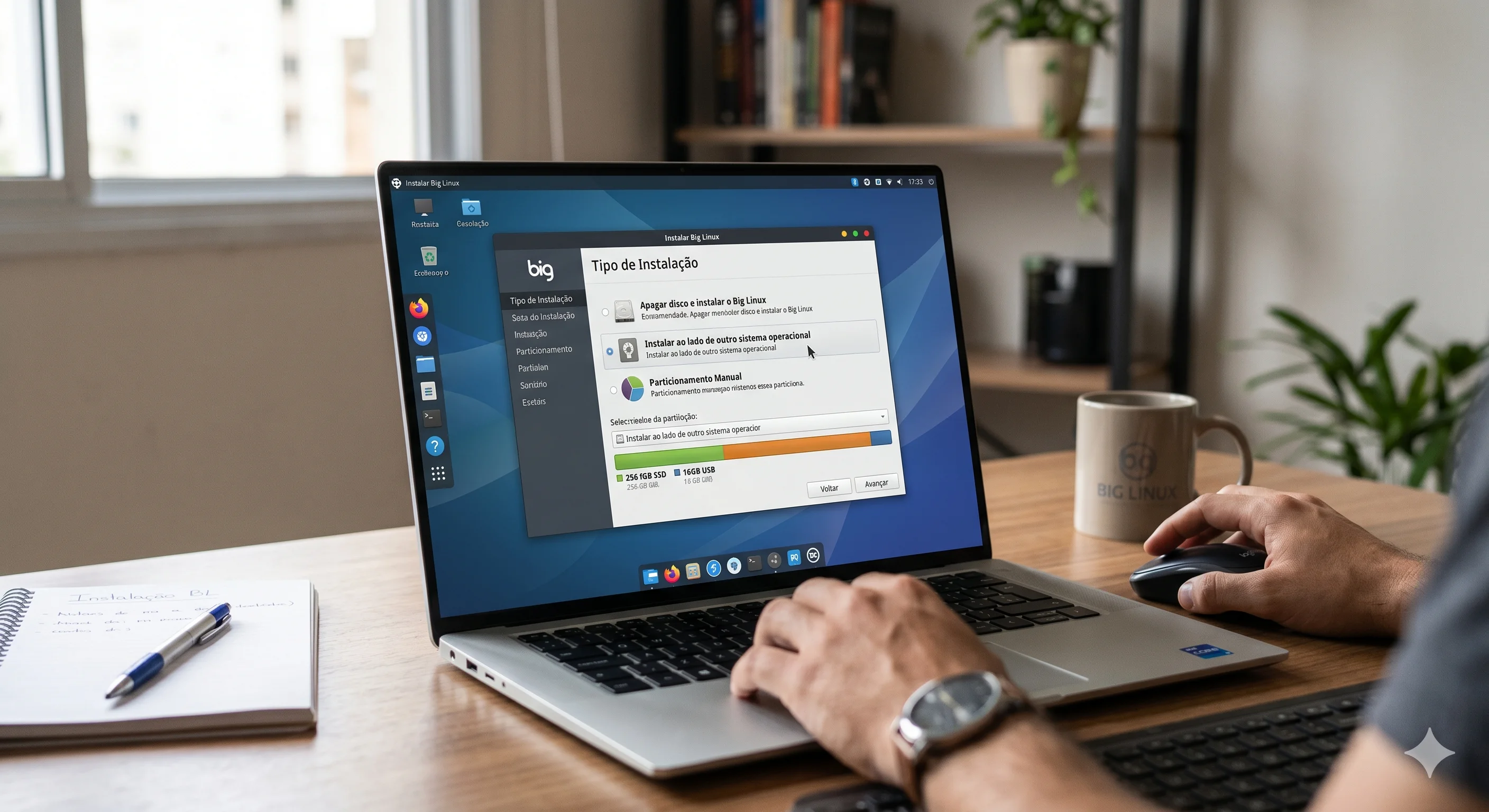
Setting up partitions and disk space
This is where many beginners get stuck, but there’s no need to worry. The installer offers simplified options:
Erase disk: If you want a computer running only Big Linux, this is the easiest choice.
Install alongside Windows: If you want to keep your old system, the installer automatically sets up a dual-boot configuration.
Manual partitioning: Only for advanced users who need a specific structure.
Follow the installer’s default recommendations if you’re unsure. It’s smart enough to suggest the best folder layout.
Post-installation: Essential adjustments
Congratulations, you’ve installed the system! But the job isn’t quite done yet. To ensure everything runs smoothly, we need to put the finishing touches on it.
Update the system
Right after your first login, open the “Control Center” or the update manager. Big Linux will have update packages available. Keeping the system up to date isn’t just about getting new features—it’s about security and stability.
Install Your Favorite Programs
Big Linux has an amazing app store. Everything you use on a daily basis—like the Chrome or Brave browser, text editors, image editors like GIMP, and even video calling apps—can be installed with just one click.
Explore the interface settings
One of the coolest things about Big Linux is the ability to change its look. You can make the system look like Windows, macOS, or something completely unique. Play around with themes, panels, and widgets. The system is designed to be customized just the way you like it.
Troubleshooting common issues
Sometimes, things might not go exactly as expected. But don’t despair—the Big Linux community is one of the most helpful in Brazil.
Wi-Fi won’t connect: This is usually due to a proprietary driver. The installer itself typically detects this, but if not, Big Linux’s “Driver Management” tool can fix it in seconds.
Installation questions: If you encounter any errors, make a note of the error code. The project’s official forum and Telegram groups are excellent places to ask for help. There will always be someone willing to guide you.
Conclusion
Installing Big Linux is a process that brings much more than just new software to your PC; it’s an exercise in freedom and efficiency. By choosing a Brazilian system, you not only gain in performance and ease of use but also support a top-tier national project.
Now that you know the way, why not give it a try? If you follow the steps we’ve listed here, you’ll see that the process is much smoother than it seems. And the end result—a computer that runs like a dream with a beautiful interface—is worth every minute you invest.
So, what did you think of this journey? If you’ve already installed Big Linux or have any specific questions, let us know in the comments! We’d love to hear about your experience and help with whatever you need.